Managing Volume Snapshots
Creating Volume Snapshots in vStor
vStor allows the creation of snapshots of volumes to capture their state at a point in time. Snapshots can be used for data protection and recovery purposes.
To create a snapshot of a volume using the vStor Web Interface:
- In the Storage tab, click on the name of the volume you want to snapshot.
- In the detailed view of the volume, click on the Snapshots tab.
- Click Create Snapshot.
- In the Create Snapshot dialog:
- Specify a name for the snapshot.
- Toggle Enable deletion lock to enable deletion lock for this snapshot.
For details on snapshot deletion lock, see Snapshot Deletion Lock. To use deletion protection features, you need to add multifactor authentication (MFA) to your vStor account. For details, see Using Multifactor Authentication (MFA).
- Click OK to create the snapshot.
The new snapshot will now appear in the Snapshots tab of the volume.
You cannot delete a volume that contains protected snapshots.
The replication size shown for each snapshot represents the incremental data change since the previous snapshot.
Snapshots with Dependent Clones
If a snapshot has been used to create a clone volume, the snapshot list indicates this dependency. You can click the clone indicator to navigate to the clone volume in the Storage view.
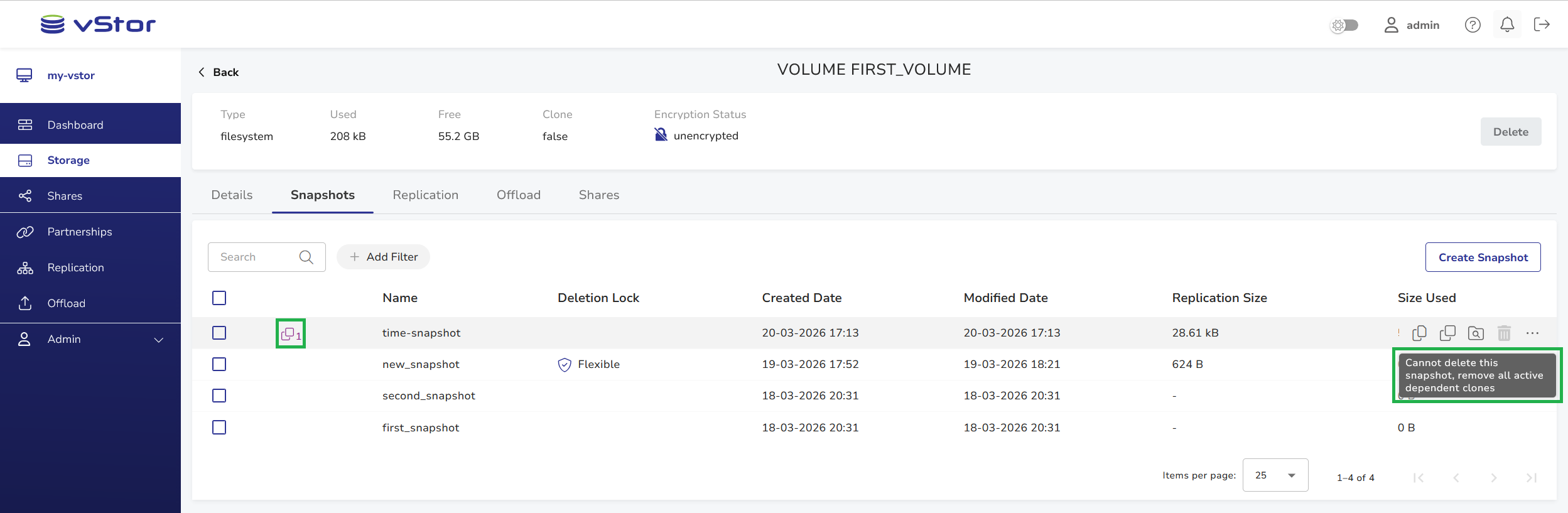
Deleting a snapshot that has dependent clones is blocked. A message is displayed explaining that the snapshot cannot be removed while clones exist. This applies to both single-snapshot deletion and bulk deletion – snapshots with clones are skipped and not removed.