NDMP Restore
This mode restores data backed up from NDMP nodes.
Creating an NDMP Restore Job
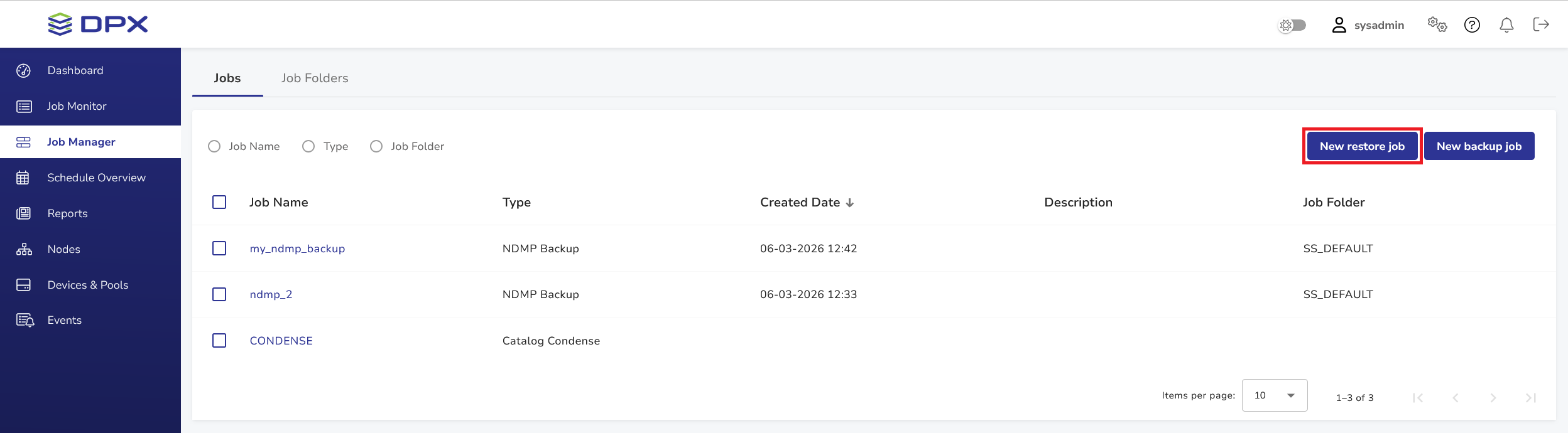
- Go to Job Manager.
- Click New Restore Job to open the New Restore dialog window.
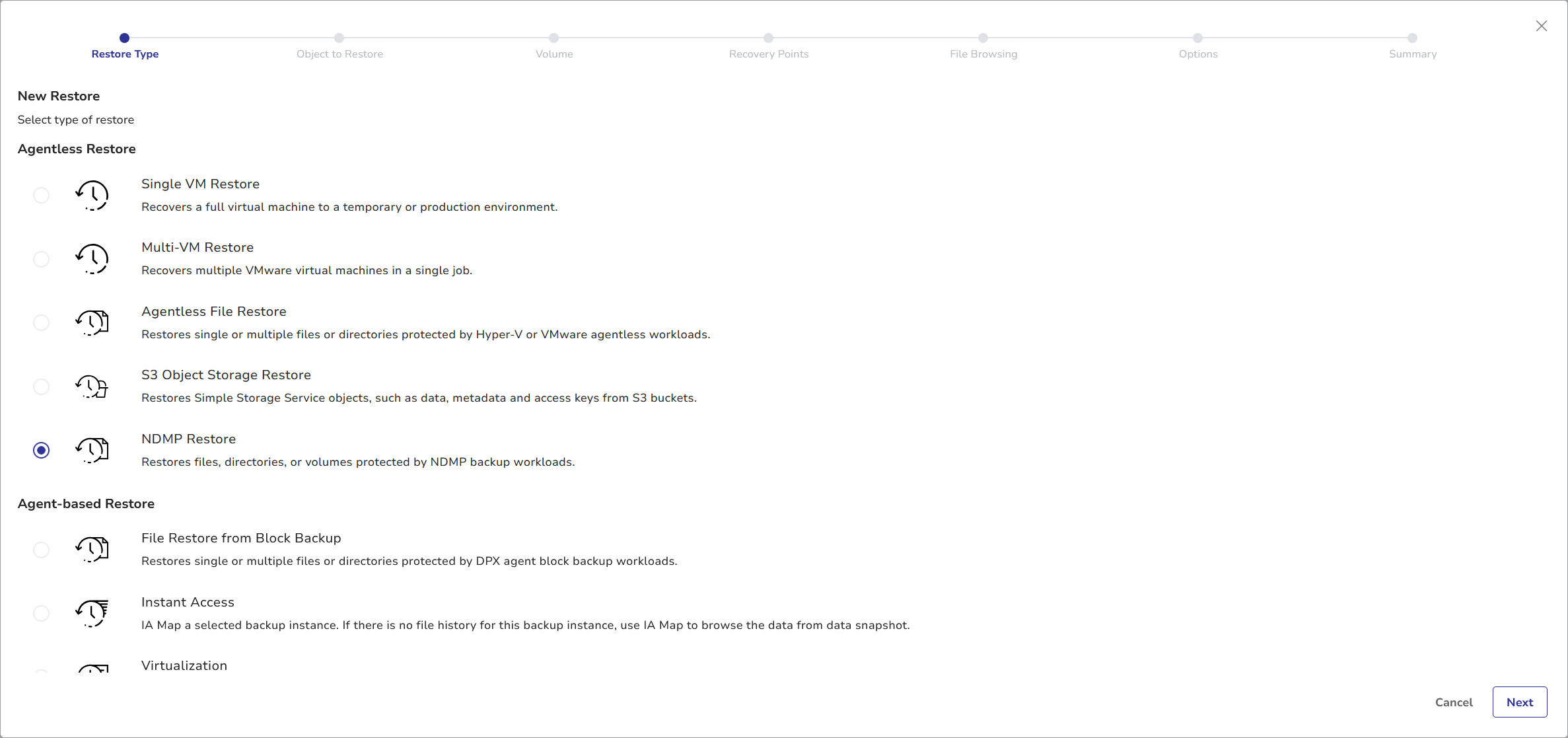
- Select NDMP Restore and click Next.
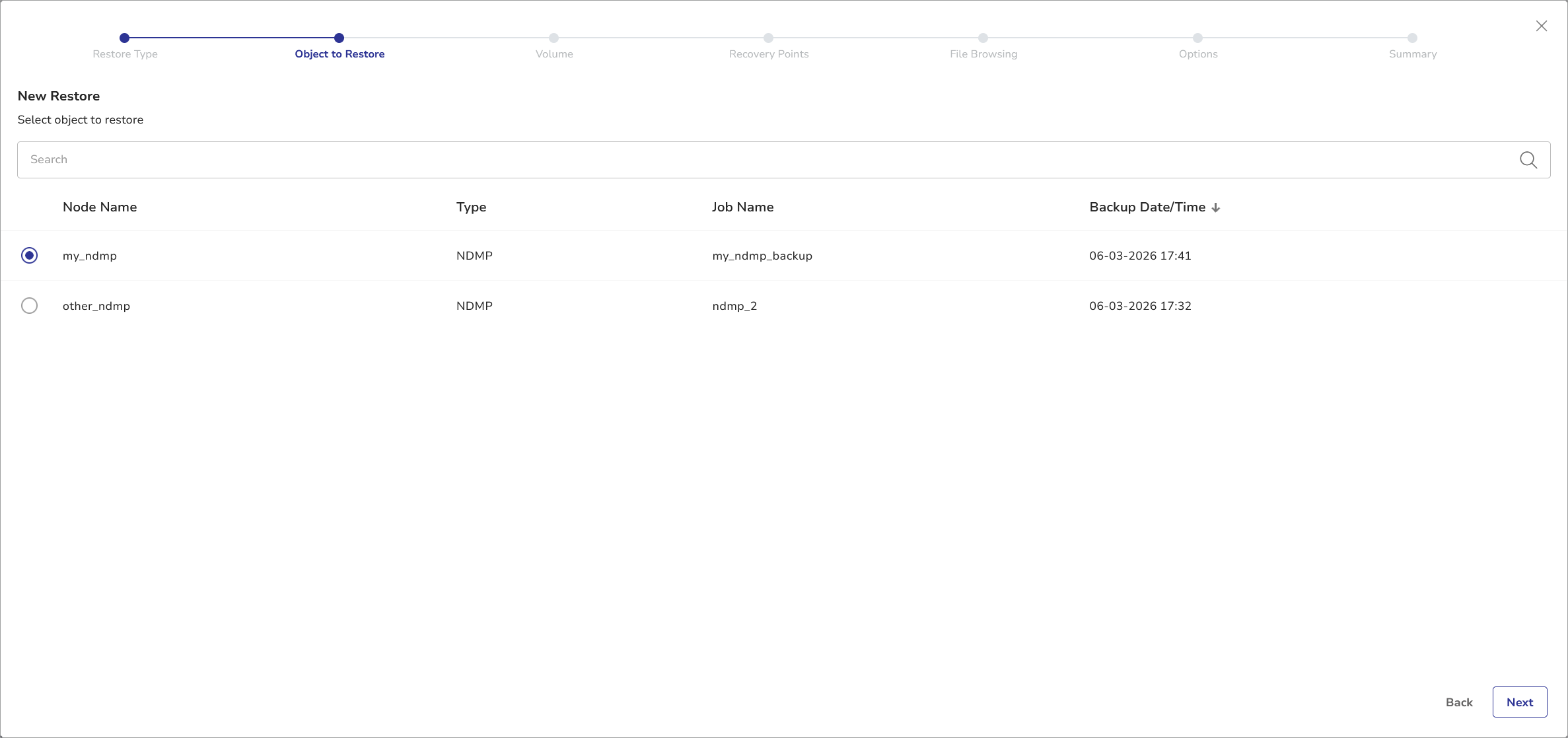
- The Object to Restore view shows all NDMP backups. Sort the buckets by Node Name, Job Name, or Backup Date/Time.
Click Next.
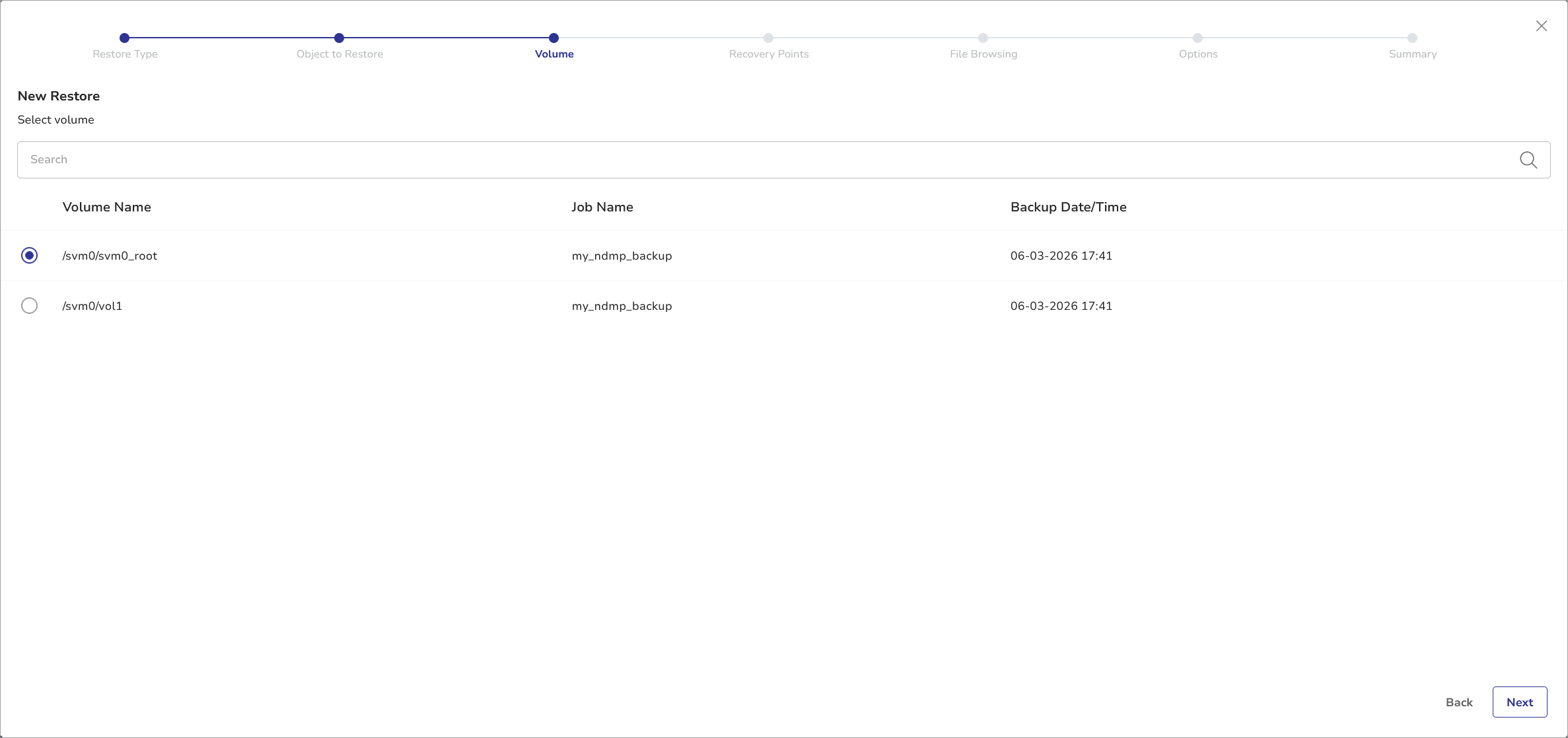
- In the Volume step, select the volume you want to restore. Only one volume per restore job definition is allowed.
Click Next.
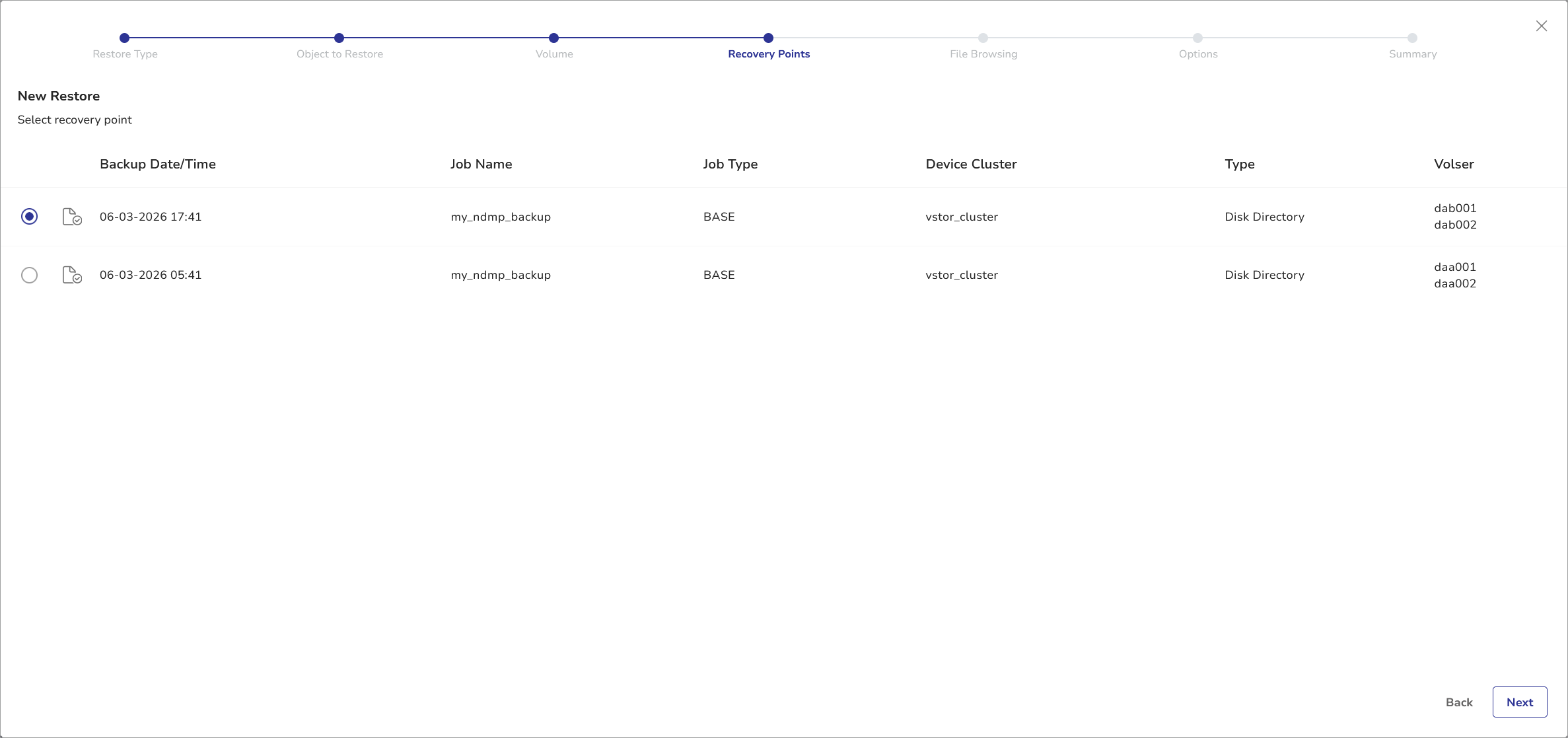
- In the Recovery Points step, select the recovery point you want to restore from.
Click Next.
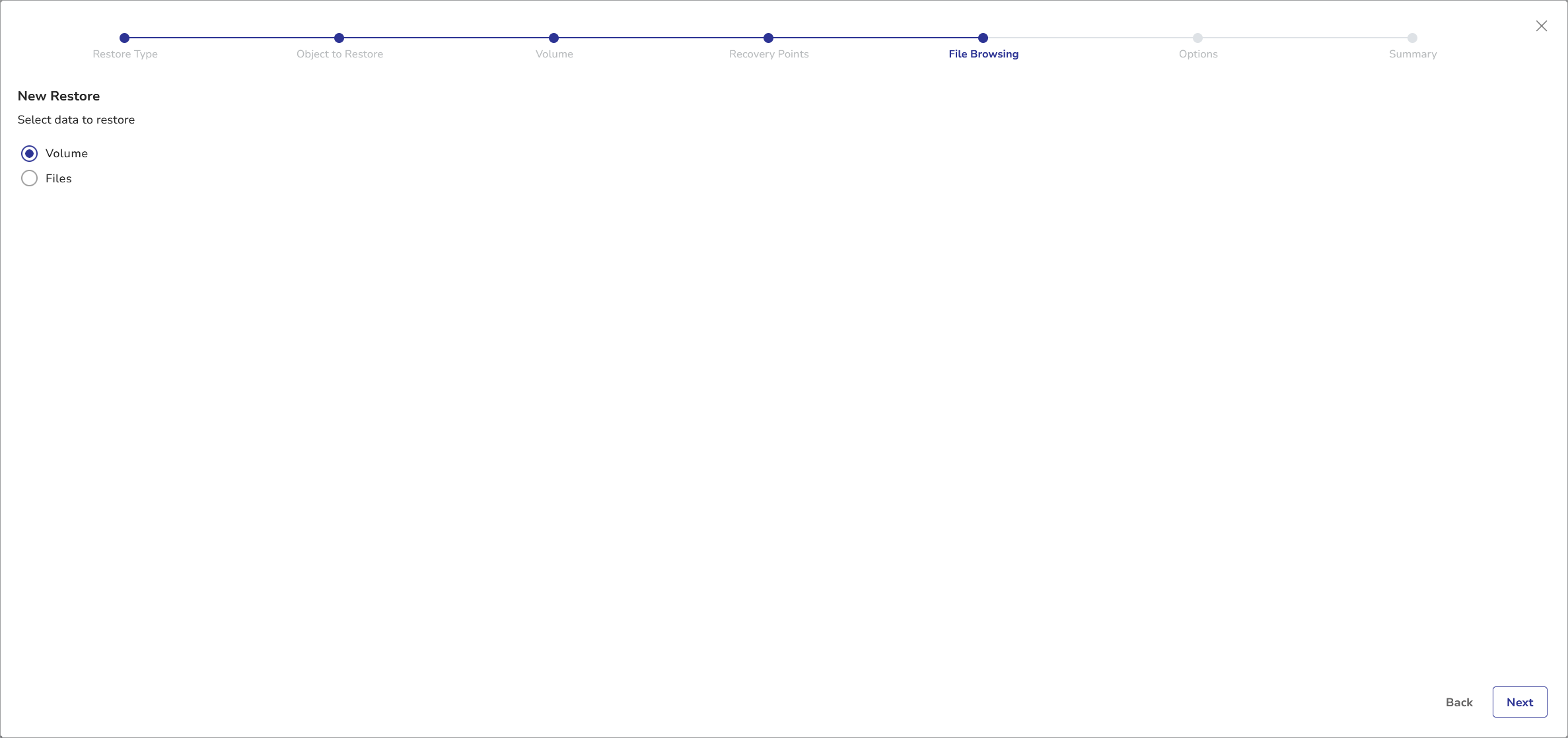
- In the File Browsing step, select either the entire Volume or specific files.
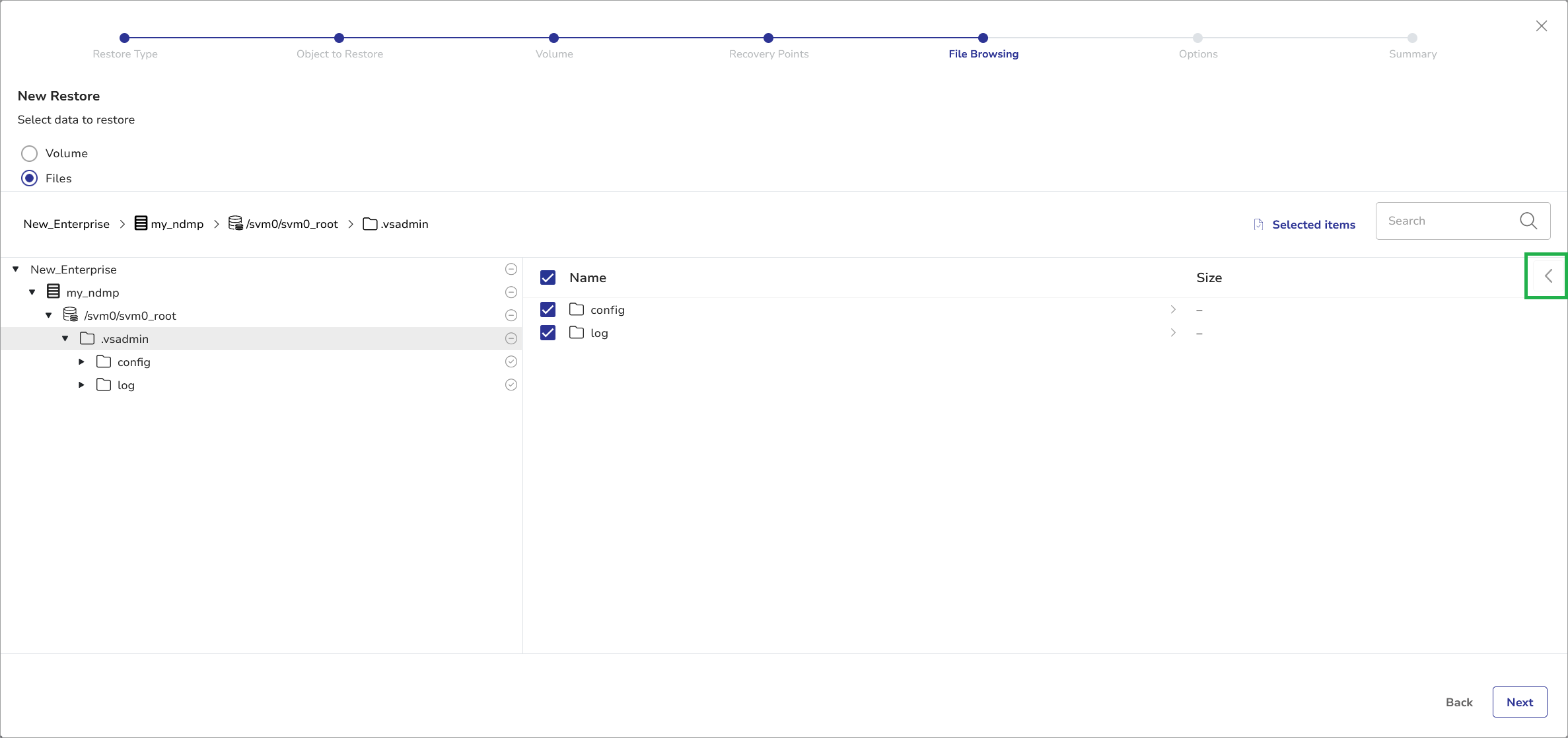
If you select Files, the file manager will appear, allowing you to select specific files for restore; click the volume label in the left-hand pane to display items within the volume.
Select all desired files or directories and click Next.
File Browsing – volume selected:
File Browsing – files and folders selected:
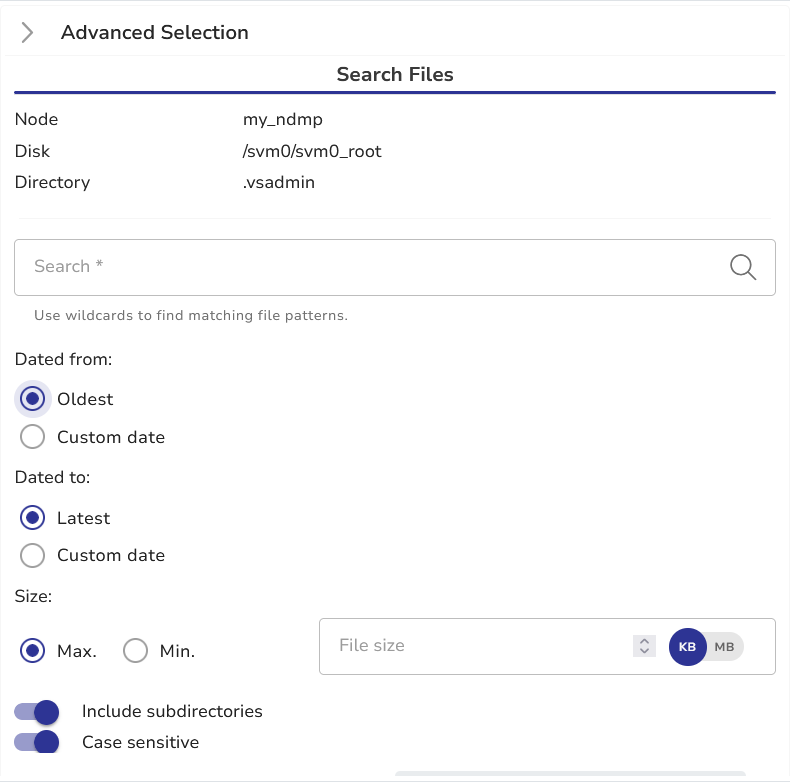
Tip.
To use Advanced Search, click the arrow to the right to open the Advanced Search slider.
- In the Options step, you can specify the job options (see below), or leave defaults.
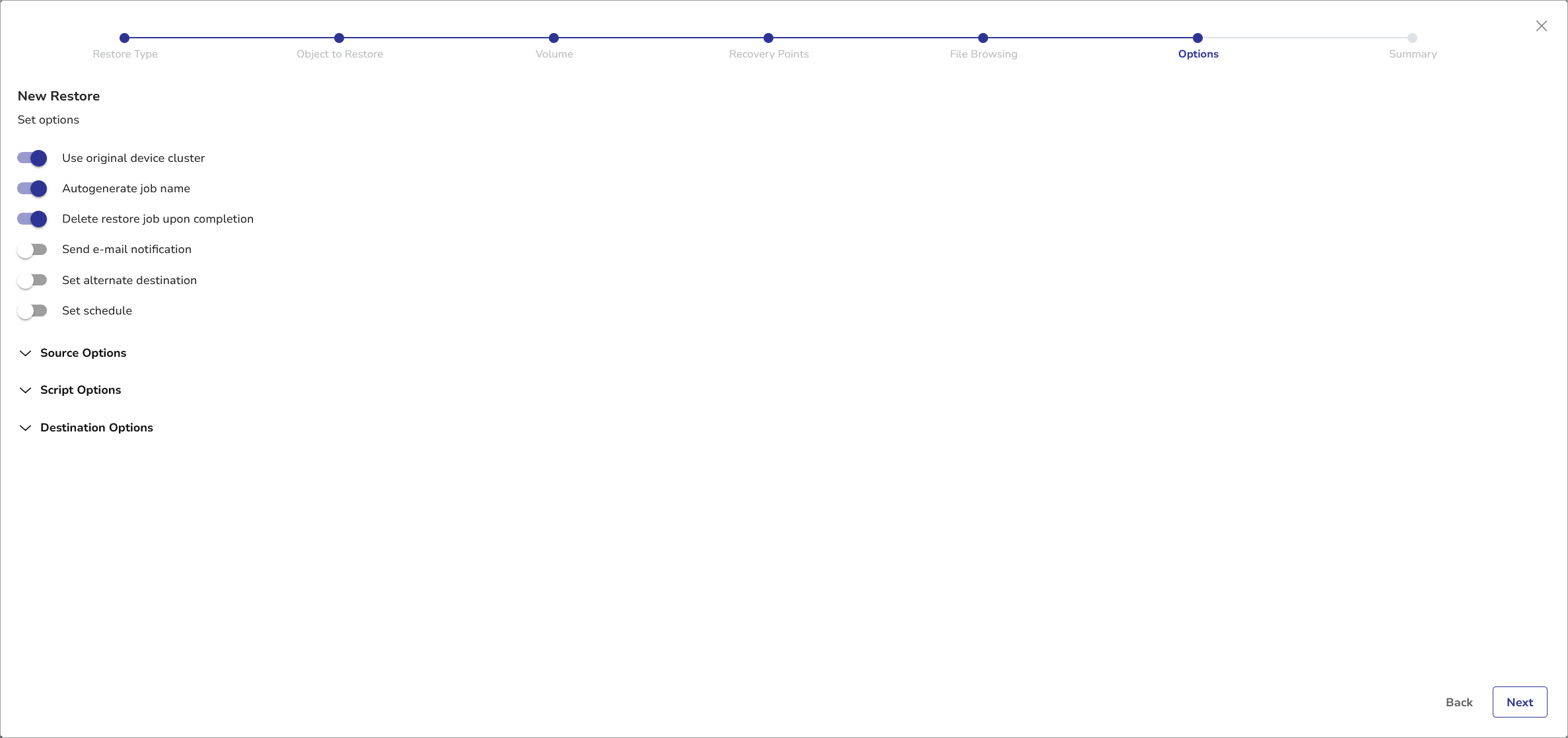
Basic Job Options
Use original device cluster
| Toggle on | The data will be restored to its original location. |
| Toggle off | Specify target device cluster. |
Autogenerate job name
Enabled by default, this option automatically generates a job name based on the Unix timestamp of the backup job.
Delete restore job upon completion
| Toggle on | The restore job defined in this process will be deleted upon successful completion. If the job fails, it will not be deleted. |
| Toggle off | The restore job will be saved and will be accessible later in Job Manager. |
-
Optionally, you can specify other job options (see Advanced Job Options). If you wish to continue with default options, click Next.
-
Verify the job definition summary in the Summary Step, then click Save.
The Run Job prompt will be shown.
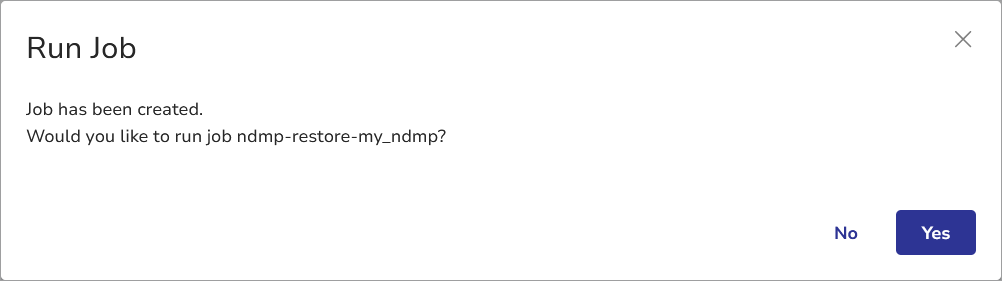
- Click Yes to run the job immediately or No if you want to run it later from the Job Manager.