Handling Media Volumes
- Web interface
- Desktop interface
- Go to Devices & Pools in the sidebar.
Switch to the Media Pools tab, then click the media pool name to view details. - Switch to the Media tab to view the media volumes in the pool.
- Hover over the volume to display the buttons in the rightmost column, or right-click the volume record to open the context menu.
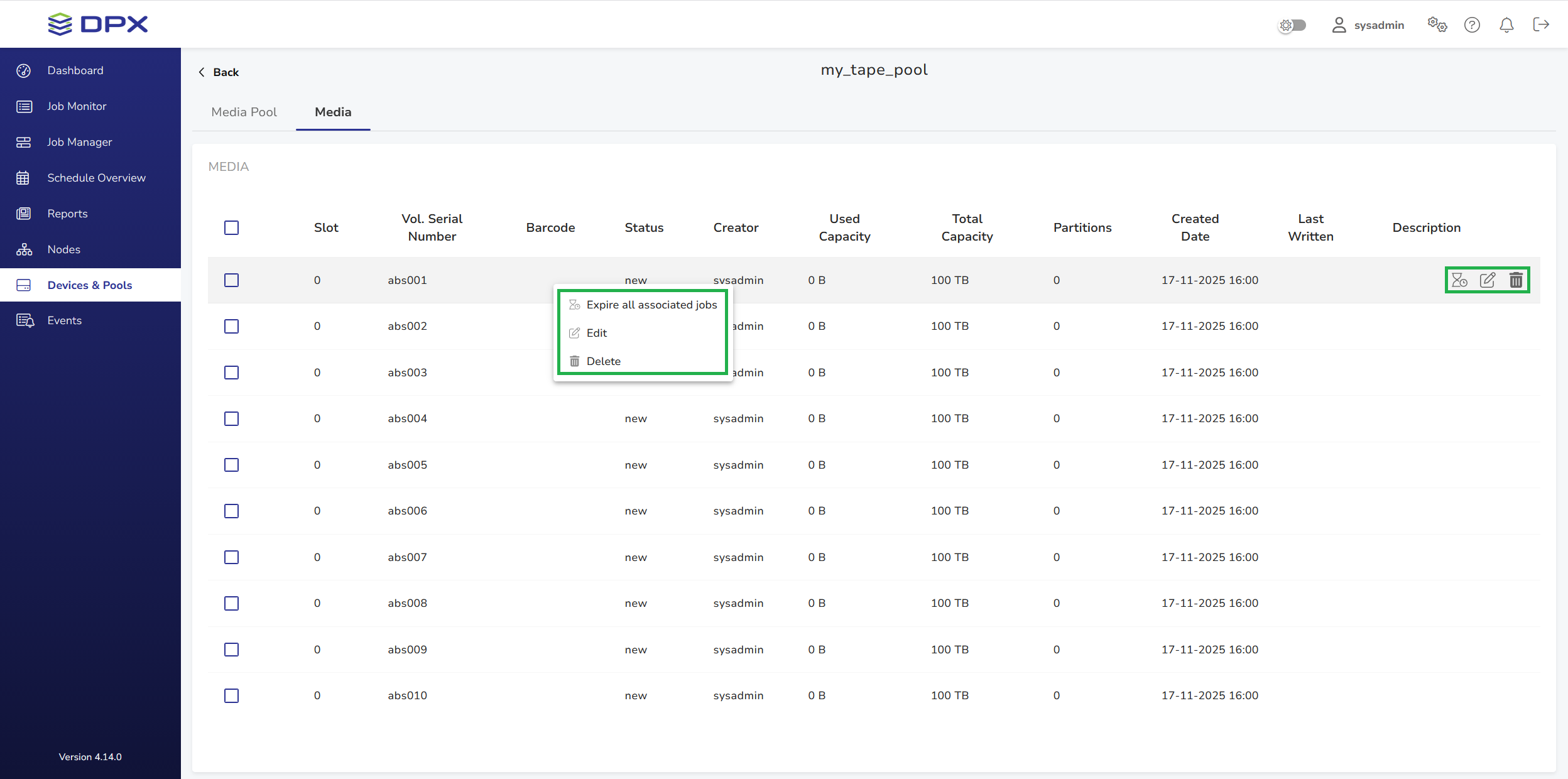
Expiring Associated Jobs
Click Expire all associated jobs. You will be prompted to confirm your choice.
As a result, all backup jobs associated with this media, i.e. jobs where this media is a backup target, will be expired.
Editing a Media Volume
- Click Edit to launch the Edit Media dialog window.
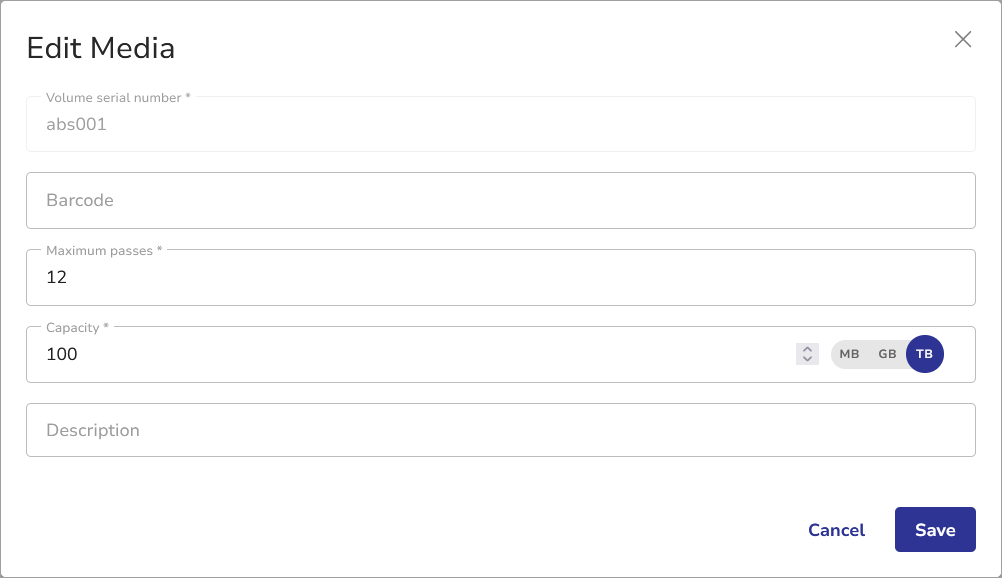
- Edit the media volume properties as required. Click Save.
Deleting a Media Volume
- Click Delete. You will be prompted to confirm your choice.
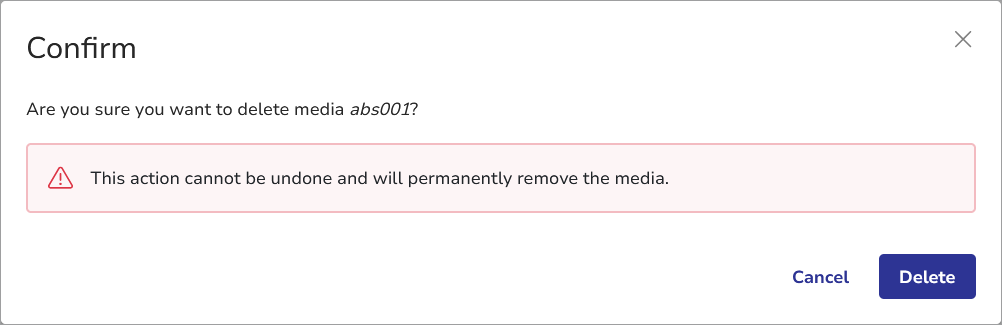
- Click Delete. The media volume will be deleted.
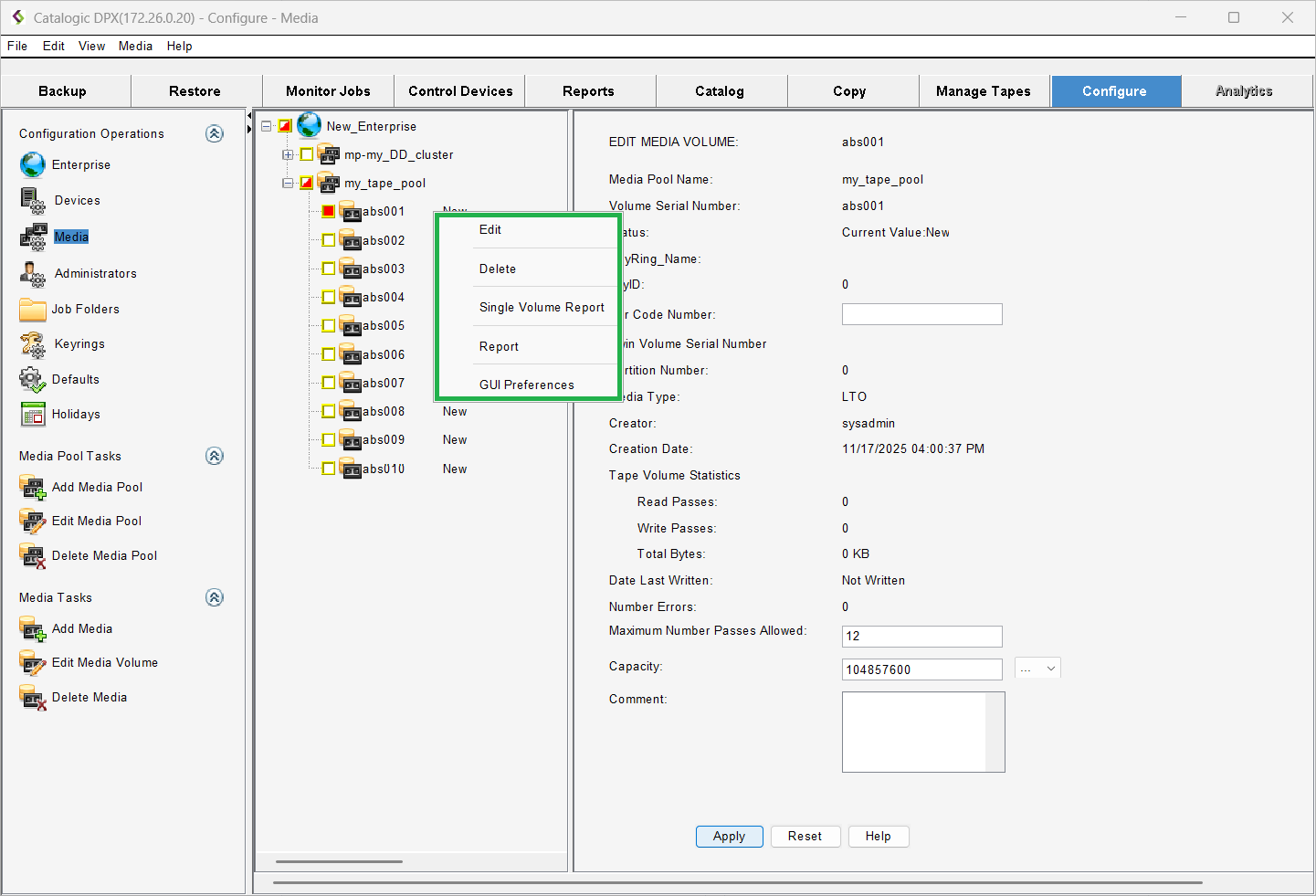
- Select the Configure tab, then click Media.
- Click the "+" symbol next to the media pool name to expand the list of media volumes.
- Right-click the media volume name to display the context menu.
Editing a Media Volume
- Select Edit in the context menu to open the EDIT MEDIA VOLUME dialog pane.
- Make necessary changes.
- Click Apply.
Deleting a Media Volume
- Select Delete in the context menu. The confirmation dialog will show.

- Click Yes to confirm. The media volume will be deleted.