File Backup
File Backup protects your data at the file or directory level. Select individual files or directories you want to protect.
Your environment is already configured to protect files located on your machine. The procedure is required for protecting files and directories located on another machine within the same network.
Prerequisites
- DPX Master Server
- DPX Client on source machine
- Storage device (DiskDirectory)
Installing DPX Client on a Machine to be Protected
DPX Client is a software agent installed on a Linux or Windows machine to perform backup and restore tasks managed from the DPX Master Server.
Allow all required ports for the Catalogic DPX Client:
- TCP: 3260, 6123, 6124, 9104, 9202, 10000, 10001, 10566, and 15660
- UDP: 6123 and 6124
To Install DPX Client:
- Installation on Windows
- Installation on Linux
- Download the .EXE client-only installer from the Catalogic MySupport website.
- Right-click the installation program and select Run as administrator.
- Follow the instructions in the installation dialog window, including accepting the Software License Agreement.
- In the Add Node to Enterprise step, select Yes, add this node to the Enterprise checkbox to register the client node and thus make it visible in the DPX Master Server. Leave other settings at their default and click Next.
- In the Master Server page, specify the Master Server Hostname or IP address. Click Next.
- Continue with the installation process. Reboot the machine after installation completes.
-
Download the .ISO image from the Catalogic MySupport website.
-
Verify the MD5 checksum value of the ISO image file by comparing it with the value on the product web page:
$ sudo md5sum ~/DPX_r415_linux.iso -
Mount the .ISO image file in the client system and go to this disk image. For example, use the following commands:
$ sudo mkdir /media/dpxclient/$ sudo mount ~/DPX_r415_linux.iso /media/dpxclient/ -
Run the installation program with root privileges:
$ sudo /media/dpxclient/DPX-4.15.0-linux-installer.bin
You can run the installation program either from a command-line interface or a graphical interface with X Window system. In the graphical interface, the installer appears in a graphical dialog window.
- The installation program prompts you to read the Software License Agreement; you need to accept the license to continue.
- Follow the instructions to set up the configurations:
- Product directory to install the DPX Client application (default:
/opt/DPX/) - DPX virtualization proxy server for VMware. Enter
Yif you are using DPX on the VMware environment and want to install this proxy server program on the client machine. (default: Do not install the proxy server.) - Logical node name (default: the hostname of the client system)
- Host name or the IPv4 address of the client node (default: the IPv4 address of the client system)
- Group name. Leave default:
DefaultGroup - Registering this client node with the DPX Master Server: answer 1 for Yes (Default: Yes), then enter the hostname or IP address of the DPX Master Server.
- Enable Block Data Protection to create block-level snapshot backups on this client node. (default: Enable)
- Product directory to install the DPX Client application (default:
- Complete the installation.
The installation procedure involves adding the DPX Client as a node to DPX Master Server. If this has not been done, go through the optional step below before proceeding with backups.
(Optional) Adding DPX Client Node to DPX Master Server
This step is only required when a DPX Client node has not been properly added to the DPX Master Server during the DPX Client installation.
The DPX Client machines must be visible in the network that the DPX Master Server has access to.
-
Log in to the DPX Master Server (see Accessing DPX Master Server above).
-
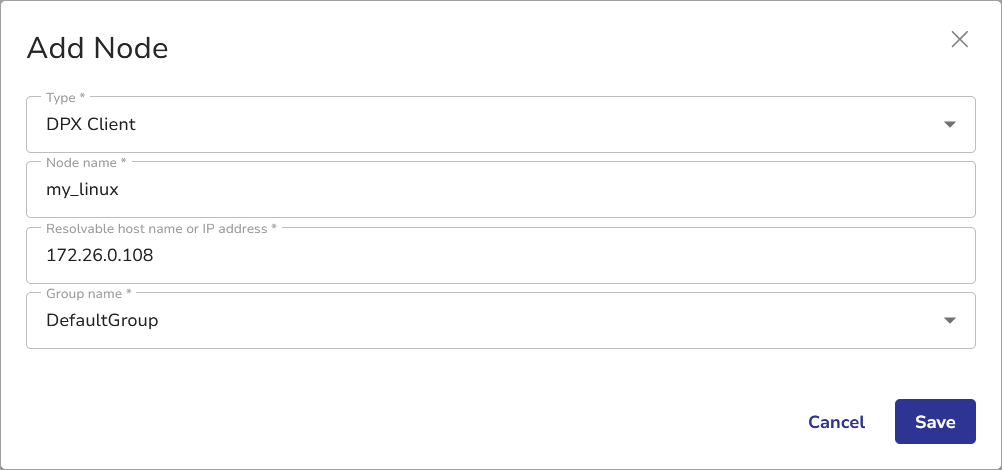
Select Nodes from the sidebar, then click Add Node in the upper right corner of the Nodes tab.
-
Complete the required fields (*), including:
- Type – leave default, i.e. DPX Client
- Node name – must be unique within the DPX Master Server
- Resolvable hostname or IP address
- Group name – leave default or create a new node group.
-
Click Save. Confirm your node has been added to the list.
Running a File Backup
Backups in DPX are handled as jobs. Each job requires a definition, and multiple instances of a job may exist once the job definition is created.
Creating a File Backup Job Definition
-
Log in to the DPX Master Server.
-
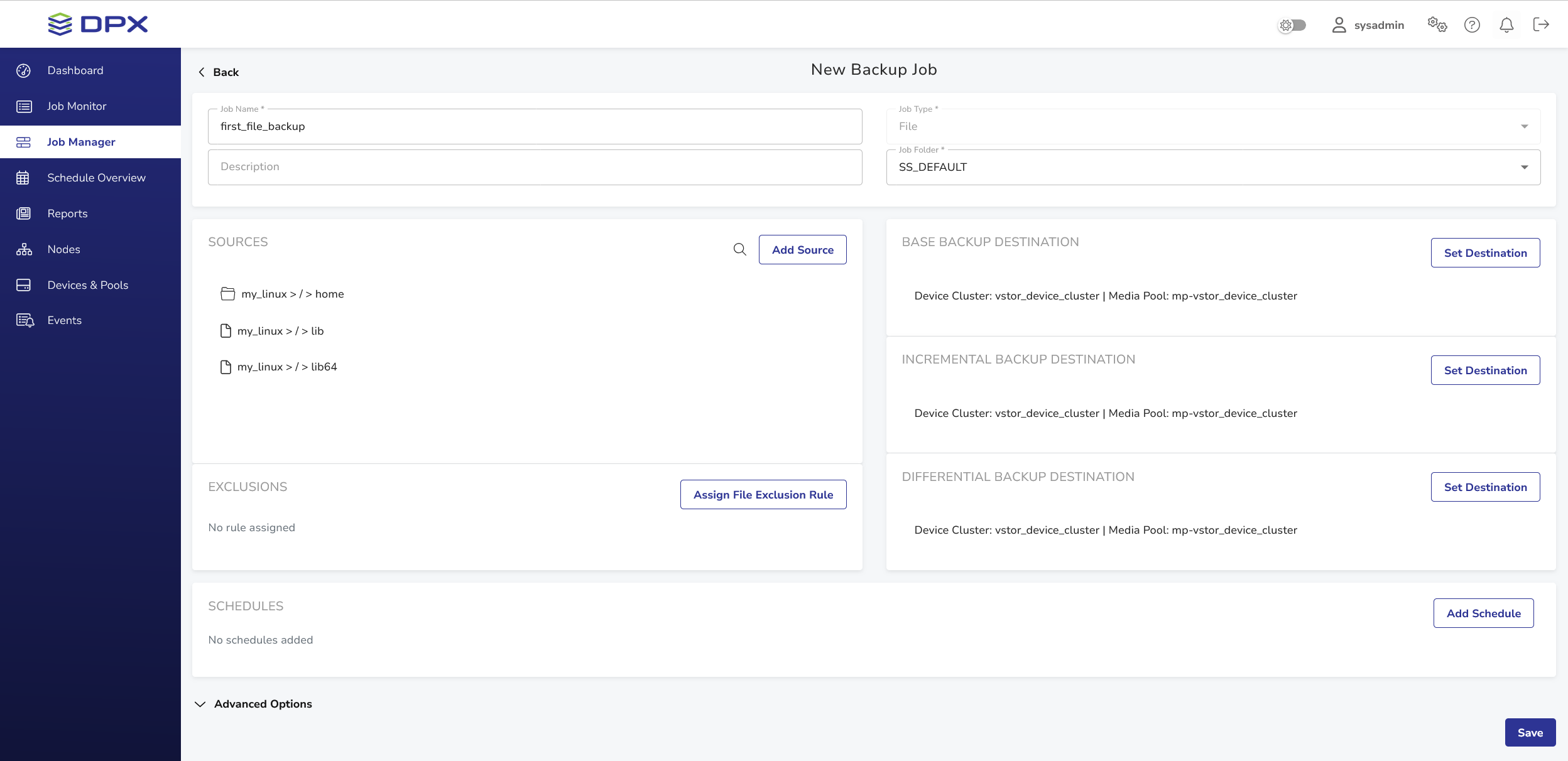
Select Job Manager from the sidebar, then click New Backup Job in the upper right corner of the Jobs tab.
-
Complete the required fields, including:
- Job name – must be unique within the DPX Master Server
- Job type – select File
- Sources – click Add Source. Drill down the tree to select the files or folders you want to back up, then click Select.
- Base Backup Destination – click Set Destination. Select the device cluster from the dropdown menu. The default device cluster created during the Backup Appliance installation is
cluster_01. - Select the corresponding media pool (the name will be the same, with the
mp-prefix). Click Save. The selection will propagate to the remaining destination sections.
-
Click Save in the lower right corner.
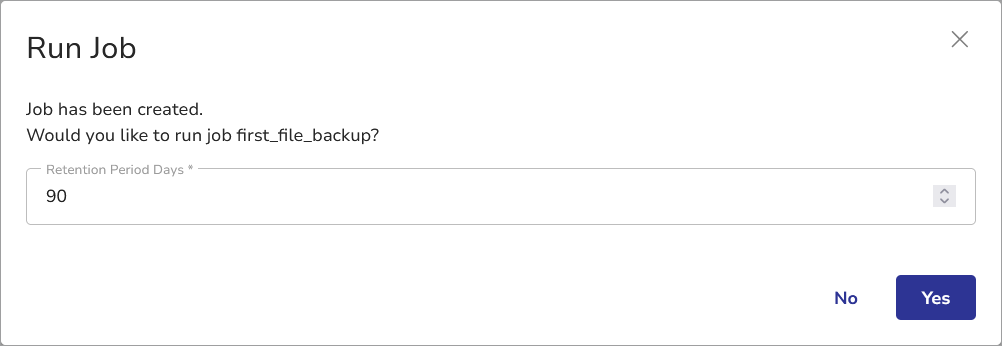
You will be prompted to confirm you want to run the job.
-
Click Yes.
You will be redirected to the Job Monitor view filtered by the job’s name, where you can monitor the progress of the job instance. The status will be Running.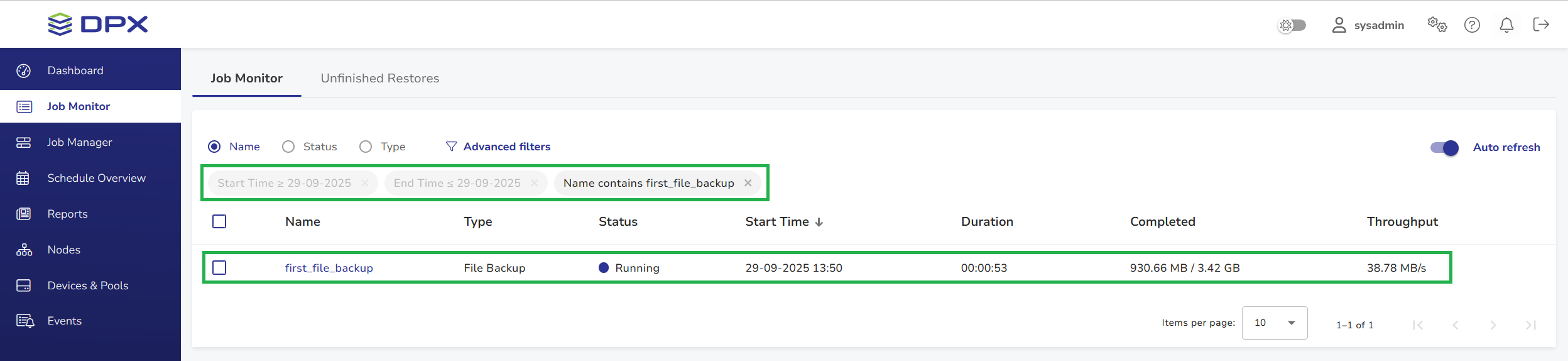
Switch on the Auto refresh toggle to track the progress in real time, or click the job name to view job instance details.
Once the job instance is finished successfully, you will see the Completed status in green. Your file backup is now done.